Giving SFTP access to a user for a certain directory !

In this mini tutorial, I will be adding the user kareem to the system, and allow kareem to sftp into a web directory where he can post his web design work, as usual, the steps first, then whatever explanations !

There are two ways to do this, one to add one user, the other to add a group of users, you can either pick one, or do both !

The part in common between both solutions

apt-get install openssh-server
adduser kareem
Then enter a new password twice for kareem

The interesting thing about this sftp user business is that the directory we will specify as the root for the user kareem has to be owned by root ! so go ahead and create the directory /var/www/html/usr/kareem, then execute the following commands

chown root:root /var/www/html/usr
chmod 755 /var/www/html/usr

chown kareem:kareem /var/www/html/usr/kareem

Now, the user kareem owns a directory within his root directory that he can write to, and can not write outside that directory since he does not have the OS permissions, Now, let us add kareem to the list of people who have sftp access but not ssh access.

Edit /etc/ssh/sshd_config and append the following to the document

Match User kareem
ForceCommand internal-sftp
PasswordAuthentication yes
ChrootDirectory /var/www/html/usr
PermitTunnel no
AllowAgentForwarding no
AllowTcpForwarding no
X11Forwarding no

Now, restart the service by executing the following command

systemctl restart ssh

You are done, try connecting with something like winSCP

Besides winSCP, you can also simply mount the linux filesystem where you have permissions on your windows machine, here are the complete instructions on how to do that https://www.qworqs.com/2022/10/09/mounting-a-remote-linux-file-system-as-a-windows-drive/

Resume bad blocks where it was stopped

The answer to this should be simple, I initiated the test with

badblocks -nsv /dev/sdb

, first, interrupt bad blocks with ctrl+c, the output should be

Checking for bad blocks in non-destructive read-write mode
From block 0 to 1953514583
Checking for bad blocks (non-destructive read-write test)
Testing with random pattern:   0.92% done, 49:38 elapsed. (0/0/0 errors)
 21.32% done, 18:49:24 elapsed. (0/0/0 errors)

Interrupted at block 416437376

Interrupt caught, cleaning up

Okay, so we know what blocks it was supposed to check (1 through 1953514583), and where it was interrupted (416437376)

So i will ask it to resume testing from where it finished (-1), up to the end

badblocks -nsv /dev/sdb 1953514583 416437375

n = Non destructive
s = Show progress
v = tell us about what you find !

The new run should tell you the percentage correctly, but the time counter will be reset to zero, as it is only counting how long this run has been running for

One thing to note is that bad blocks can be used to instruct the filesystem to avoid the bad blocks, but it also allows the disk’s firmware to substitute bad blocks with spare blocks, so that the disk works again with no intervention from your end !

So for my 2TB hard drive…

416437375 = 21% (13 hours)
619014719 = 31.6% (+23:22)
627995199 = 32.15% (+1:04)
667782398 = 34.18% (+4:46)
715469885 = 36.62% (+5:44)
827834875 = 42.38%

While running the tests, you might want to keep an eye on the hard drive temperature with a command like

hddtemp /dev/sdb

To create a log file of the bad blocks, every run should have it’s own file !

badblocks -nsv -o /root/badblocks3.txt /dev/sdb 1953514583 627995198

The concatenation of those files you are creating is very useful in creating a file system if you ever decide to format the drive later !, but the recommended way is using badblocks with the other disk tools directly

while the test is running, you will see 3 numbers that correspond to readerror/writeerror/corruptionerror

webP is the new PNG

Superior in both Lossless compression, and Lossy compression, webp is the new image format by google

Already supported by all web browsers *(that i have tested it with), webP is indeed a promising format, so let us get to compressing our images

I have a big bunch of bitmaps that my scanner spits out (To avoid lossy jpeg compression the scanner’s driver produces), and i need them converted to lossless webp to save space (the first image I compressed went from 552MB bitmap to 183), that is 33% of the original size

So, under linux, this is how i would convert all BMPs into webp images, I think it is exectly the same on windows

on the command line, the command for compressing one image looks like

cwebp -lossless 00.bmp -o 00.webp

Now, the next step is to run them in a batch, copy the following text into a file and name it with the extension

Linux find and replace string in multiple files

On windows, you might have been using text editors that search or search&replace within files in a folder, one such tool i have used in windows is “source edit” by Joacim Andersson (Brixoft Software). that text editor does not seem to be maintained any longer as the developer seems to have moved into making games, but there are certainly many other editors that allow you to do the same thing.

On the other hand, on Linux, I don’t need to do that, the basic tools that come with the operating system allow for that, multi gigabyte files can be searched and have certain text replaced at the speed it takes to read them (Without having to open them for editing)

So, let us assume we have a folder with many text files (Including css or js or html or php files for example), to search that folder, we can combine

grep -Ril "text-to-find-here" /path/to/file/

-R (-r) look for files recursively
-l show file names, not the contents that were found
-i ….

Another tool which is better suited for looking in code is ack (ack-grep) which i will come back to cover in this article, and a newer tool that i have never used is

Now, replacing a string inside a file is simple, there is a cool tool called sed

sed -i '/TEXTTOFIND/ s//TEXTTOREPLACEWITH/g' verylargefile.txt

Now, to find all occurances of a string in all the files in a directory and it’s subdirectories, you can use the following command, Mind you, this is always treated as a regular expression, if your string contains a dot or anything else that is part of regular expression syntax, you will need to escape it, to avoid that, check out the sd command below

find -type f -exec sed -i 's/find/replace/g' {} +

{} + invokes the “exec” command with multiple file names at once, instead of once per file

The sd command

the -s flag disables regular expressions, sd and fd have rust crates, apt install fd-find sd

fd --type file --exec sd 'Find' 'Replace'
Or with backup
fd --type file --exec cp {} {}.bk \; --exec sd 'from "react"' 'from "preact"'

-s : No regular expressions

In some cases you can even forget about fd, as sd is now capable of dealing with multiple files
sd -i "\n" "," *.txt

Gnome terminal tab title

To tell tabs apart fast, you can give every terminal tab a name, just execute the following line inside that terminal window

echo -ne "\033]0;SOME TITLE HERE\007"

I am doing this on the default gnome terminal in Debian 11/12 (Bullseye/Bookworm), older methods no longer work

You will have to execute this every time in every SSH window to a remote machine, I am looking into a way to making the name permanent !

Does this work with putty on windows?

YES ! I have just tested this with the latest putty (2024-11-02), two and a half years after posting this for terminal in gnome, and I can confidently say it does…

New firmware for my Western Digital “My Book Live” NAS storage device

The WD My Book Live is a NAS device based on Debian Linux, Since Debian stopped supporting this processor (APM82181), the device has received no updates and will probably never, so the next best thing to do in my opinion is to install openWRT.

WARNING: I recently got a second MyBook Live device, tried installing 23.05.0 but for some reason, i could not get networking to work, So i simply installed V21, then upgraded to 23… there was probably just something I was missing, but i could not be bothered figuring it out, this was a faster way…

Before you start

1- Only the first few paragraphs of this tutorial (STEPS 1 THROUGH 6) are the instructions you need, the remaining is just for extra reference and in short you don’t need to read it to have your device running, but I do recommend YOU SKIM THE WHOLE THING BEFORE YOU START.
2- This procedure requires you to take the disk out and install it on a PC to switch the firmware, then put it back
3- The upgrade will delete all your data, You will need to move your data that is already on your WD NAS drive somewhere else while the upgrade is ready.

Step 1: Move any existing data BEFORE TAKING APART.

Move any data you may have on the drive to a temporary location outside the NAS drive. this has to be done before taking the drive apart as the unconventional 64 kB block size of the disk will be nothing but trouble if you want to extract the data while mounting the disk to a linux PC for example.

Step 2: Take the disk apart

I have included photos to help you do that, it is not rocket science.

Step 3: Mount the disk on a linux PC (Windows and MAC should work)

and mount it to a linux PC (Windows might work with software such as etcher, but i have no guarantees).

Step 4: Download the openWRT firmware

Go to the drive’s page on the openwrt website (Here), and download it to your Linux (Or windows) PC

Step 5: Write the firmware to the disk.

Decompress the file, then copy it to the drive with a command similar to the command below, but make 100% sure to replace sdx with your own drive designation

 dd if=/root/wdsata.img of=/dev/sdx bs=64k

Write the firmware to the disk, overwriting it, and effectively loosing any data you did not backup in step 1

Step 6: Put the drive back in the enclosure

Nothing to say here, this is the reverse of step 2

Once it is in the enclosure, you can not just connect it to your router as it in itself has this port defined as 192.168.1.1 and is serving dhcp !

Step 8: Create the data partition

At this stage, your device will boot, but you will need to create/expand the data partition, the partition that should not be overwritten when you upgrade the firmware for example.

opkg update
opkg install gdisk blkid openssh-sftp-server block-mount
gdisk -i /dev/sda

As soon as gdisk opens, you may be presented with the following message, if so

Found valid MBR and corrupt GPT. Which do you want to use? (Using the
GPT MAY permit recovery of GPT data.)
 1 - MBR
 2 - GPT
 3 - Create blank GPT

Chose 1 to maintain the 2 partitions we have, Now hit the command (w) to write and confirm, then quit, gdisk has just switched your disk to GPT from MBR, now run gdisk again the same way (gdisk -i /dev/sda)

n for new partition, accept the (3) for partition number, use the number (2097152) for alignment with 4K sector advanced format nearest to the 1GB mark

mkfs.ext4 /dev/sda3
mkdir /share
blkid /dev/sda3

You might find a file named fstab in /etc, this is not the file that needs to be edited, the one you are seeking is in /etc/config/fstab in my case, the UUID was as follows UUID=”9643bd00-f117-4074-a252-7ea30a5174e2″ yours will certainly be different, so in my fstab i added the following lines near the end

config mount
option target '/share'
option uuid '9643bd00-f117-4074-a252-7ea30a5174e2'
option enabled '1'

Now, network sharing is what i was originally interested in when i got this unit, and it is why I am replacing it’s firmware, so to installing samba

opkg update && opkg install samba4-server luci-app-samba4

Now, add the following line to /etc/passwd to add me as a user to the system

yazeed:*:1000:65534:yazeed:/var:/bin/false

Or, if you do not want to add the user manually, you can install the adduser package, and add the users through it like so

opkg install shadow-useradd
useradd yazeed
Unfortunately, this command won't do and you will have to edit it in the passwords file

Now, for either method from the above, run the command

passwd yazeed
smbpasswd -a yazeed

Now, since this is a NAS device, disk tools may be a good idea

opkg install hd-idle luci-app-hd-idle hdparm

To check if disk is spinning, try the command
hdparm -C /dev/sda
The responce active/idle means it is spinning

You are done.

FAQ

Is the hardware and the new openWRT firmware compatible with my 8TB hard drive

Yes it is, I have found many people asking if the hardware supports drives over 2TB, the answer is yes, but you will have to use the GPT rather than the MBR (See steps above)

about the original firmware

What is that vulnerability about

it comes from WDs cloud service, bottom line is that many devices were completely wiped remotely by malicious users and it is unknown if the data itself leaked, so yes, it is very serious

What is the difference between quick factory restore and full factory restore

Quick factory restore is probably what you are looking for, the later seems to do a zero fill on the hard drive after performing a factory restore to disallow data retrieval (For example before you sell it), you can verify this by logging in using SSH, and by the fact that the tool tips state something to that effect.

Inspecting the device

To begin with, I logged in via SSH and inspected some stuff, to enable SSH access on the My Book Live original firmware, you will need to visit a page at a URL such as http://mybooklive/UI/ssh or http://192.168.2.116/UI/ssh (Replace the IP with your own)

the system is based on the following CPU

CPU
processor       : 0
cpu             : APM82181
clock           : 800.000008MHz
revision        : 28.130 (pvr 12c4 1c82)
bogomips        : 1600.00
timebase        : 800000008
platform        : PowerPC 44x Platform
model           : amcc,apollo3g
Memory          : 256 MB

With that out of the way, A look at /etc/apt/sources.list revealed that it is a Debian Distro, the only problem with this is that debian stopped supporting this CPU some time ago, so you can’t go past Debian 8 (Jessie)

deb http://ftp.us.debian.org/debian/ squeeze main
deb http://ftp.us.debian.org/debian/ wheezy main
#deb-src http://ftp.us.debian.org/debian/ wheezy main
#deb http://ftp.us.debian.org/debian/ sid main

Checking the disk info with hdparm revealed that the disk is a WDC WD20EARX-00PASB0, which is as i expected a Caviar Green (SMR disk)

parted (The new fdisk so to speak) shows the following partition scheme for the existing system.

Model: ATA WDC WD20EARX-00P (scsi)
Disk /dev/sda: 2000GB
Sector size (logical/physical): 512B/512B
Partition Table: gpt

Number  Start   End     Size    File system     Name     Flags
 3      15.7MB  528MB   513MB   linux-swap(v1)  primary
 1      528MB   2576MB  2048MB  ext3            primary  raid
 2      2576MB  4624MB  2048MB  ext3            primary  raid
 4      4624MB  2000GB  1996GB  ext4            primary

And a “df -h” reveals

Filesystem            Size  Used Avail Use% Mounted on
/dev/md0              1.9G  555M  1.3G  31% /
tmpfs                 5.0M     0  5.0M   0% /lib/init/rw
udev                   10M  6.7M  3.4M  67% /dev
tmpfs                 5.0M     0  5.0M   0% /dev/shm
tmpfs                 100M  4.6M   96M   5% /tmp
ramlog-tmpfs           20M  4.5M   16M  23% /var/log
/dev/sda4             1.9T  2.1G  1.9T   1% /DataVolume

A good alternative for this Gigabit Lan network attached storage might be openWRT, the same firmware I use for my routers !

there are things you need to know in advance though, first of which is that changing the firmware will require you to delete everything on the drive ! as Western Digital have used an unconventional bunch of things such as a 64 kB block size !

With that out of the way, you can skip down to the installing openWRT about the upgrade process step by step (Including backing up your system), then come back to why etc…

What if i want to revert back to the WD software ?

That is indeed a good question, and to make it easy to do that, I have already backed up the entire disk to another while I am sure that i don’t want to go back. Also worth mentioning that the latest firmware on the WD website dates back to 2015 ! which is at the time of writing 6 years ago !

Where can i find the up to date openWRT distribution for this drive ?

OpenWRT has a page dedicated to this drive, both the single and the Duo here (https://openwrt.org/toh/western_digital/mybooklive)

What are the benefits of the NAS box (enclosure), why not just take out the hard drive and put it in a PC somewhere.

The Western Digital My Book Live has a super low power CPU, and when the disk is spun down, it consumes very little energy (Not a significant load to your UPS for example), It is also fan-less, so it is with the exception of the spinning drive when it is spinning silent, which is also a nice thing, So i would argue that keeping it by updating it’s software is a good idea

Another reason is the amount of relevant software provided through openWRT packages, covering many more things than the original firmware (miniDLNA included).

Errors and resolution

1- I have this error that i have not resolved yet

mv: setting attribute 'user.DOSATTRIB' for 'user.DOSATTRIB': Permission denied

2- The NAS box will not accept many files that windows creates such as Thumbs.db, to allow such files to be stored, This can easily be resolved by editing the samba template and commenting the “veto” files line, then make sure the config is regenerated from the template

How do i keep the system up to date

If you come from a debian background, you would normally apt-get update then apt-get upgrade and that is that, in OpenWRT, there is no such upgrade command, the upgrade command in openWRT is meant to upgrade 1 package specified by name, so the solution is the following line

 opkg list-upgradable | cut -f 1 -d ' ' | xargs -r opkg upgrade
Mounting a disk image in Linux

The new way of mounting a disk image created with dd, dd_rescue, or ddrescue has become much simpler than before, all you need now is to issue the command

losetup --partscan --find --show disk.img

then above will tell you what loop device is being used, let us assume it is /dev/loop0, right after, a quick fdisk -l should show you the partitions, in my case, i have /dev/loop0p1 and /dev/loop0p2

mount /dev/loop0p1 /mnt

now, the first partition is mounted, to reverse this, you will need to first unmount /mnt then, you can delete the loop device with

losetup -d /dev/loop0

At this stage you can mount it like any other device, in read-write mode by default, if you want to mount it in read only mode, you can use the -o switch

sudo mount -o ro /dev/loop0px /hds/loopdevice

Now, if you have DDd a partition rather than a block device (disk) and want to mount it, you can simply mount it as a loop device, and then mount the loop device (loop0) without a Px at the end

Running the mv command in the background

One of the most annoying things that can happen to you is to disconnect your laptop from the network, then realize that there was a file moving job that was running, the command is going to get disconnected before mv gets the chance to delete the source files, the new copy is a hassle, i personally use rsync to continue such a copy with the delete source files flag

But it does not have to be this way, you can move the mv command to the background, the steps are simple

First, to suspend the job, you need to hit CTRL+z , once suspended, you should see a job number in the suspend acknowledgement

CTRL+Z

Now, the next step is to disown the job, because right now, if you close your terminal window, the job will still be terminated

disown -h %1 (replace one with your own job number which may be 1)

Now to get the job running again but in the background

bg 1

That is it, you can now close (logout) your terminal window

So the summery
ctrl+z
disown -h %1
bg 1
logout

Now mind you, the output to stdout will not display (In most cases), you will need to use process status ps x to see the process.

If you want to bring back the command into the foreground, all you need to do is execute the command jobs (to find the ID), then run the command fg 1 (if it was job number one), then to hide it again, you can ctrl+z then bg 1 again (No need to disown it this time)

Connecting to Windows KVM with VNC and putty tunnel

The setup assumed in this post is as follows, you are working on a remote windows computer, there is a Linux KVM host computer running guest virtual machines somewhere (OS of guest irrelevant), and you would like to connect to a guest machine’s console (which may be running windows, linux, macOS, or any operating system)

KVM, by default only allows people to connect through VNC to the console of a virtual machine if they are using the local host computer, so here are the tips on creating a tunnel to the host computer and connecting to your KVM virtual machine.

Windows does not support VNC very well, (Most VNC servers don’t run well on windows), but the VNC server here is not windows, it is KVM that is providing the VNC server to the guest’s console.

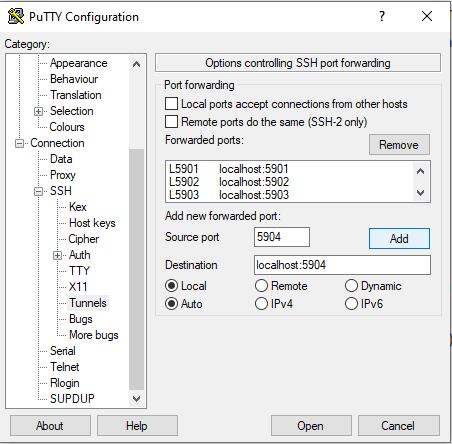
1- Create a tunnel (Putty on windows), simply put, save the connection in putty to that host machine, then under tunnels you will need to have something like this (And go back and hot save again)

Just create a tunnel for port 5900 and the destination localhost:5900 (5901 for the second virtual machine and so on), leave all other tunnel options unchecked/default

2- to know which ones are enabled on your machine run this command

netstat -tlpn | grep 590

3- VNC should now connect to localhost:9500 for example (I am using tightVNC on windows), and that connection should be automatically router to the KVM host, which will display the guest’s console depending on the port (every guest has it’s own port)