Getting my 1994 W124 E200 to run again

From other posts like this one, I seem to always be complaining about the 209 E200 W211, The thing i never mentioned is that I have an even older Mercedes E200, A W124 that has been parked for 8 years and decided just now to revive it.

for one, there is a water leak in the cooling system, for another, it has no gas in it, and the fuel pump is not working !

I recall from 8 years ago someone telling me “I can smell gas” While the car was parked near us ! So i am guessing, there is a small leak that is leaking out the gas

Not long before it got parked (8 years ago), the car had a serious leak (Leaked a full tank in a day) and I had to change the hose that connected the fuel tank to the fuel pump that is under the car !

Here are the specs, and this is post is all about how I plan to bring this car to life in a few days !

My Mercedes 200 E (W124 – E200)

  • Transmission: 5 Speed manual transmission
  • Engine: M111.940 (Wikipedia) (Check if part is 111 010 8700 on xentry/das)
  • It has that different looking steering wheel and shifter, If i recall right, this variant’s name has the word sport in it (probably sports line), but I am not sure what it was called exactly, I recall this info because I had to get the steering wheel shipped from Poland as no used or new parts dealer has ever seen it before

Diagnostics/OBD2

Well, this 1994 E does have a diagnostics port, but it is nothing like OBD2 (It is OBD1 not 2), it is very easy to read, just connect any LED (use a 12V LED, or adapt an LED for 12V with resistors obviously).

The 16 pin connector can be accessed with banana plugs connecting the LED to the flowing

Pin-3 = ECU (BLINK… LED+Button)
Pin-6 = K-line (BLINK… LED+Button) (Ex: VAG-COM USB reader)
Pin-1 = GND
pin-16 = 12V

The users manual does not go into sufficient detail concerning the (HFM Sequential Multiport Fuel Injection/Ignition System (HFM-SFI))

The OBD plug can be accessed with a scan tool (Ex: HfmScan) using the diagram below, if you insist on going into that rabbit hole, there are adapters (OBD2 to banana) like the one you see here, which connects the OBD connector to the following pins (OBD breakout cable 4 colours)
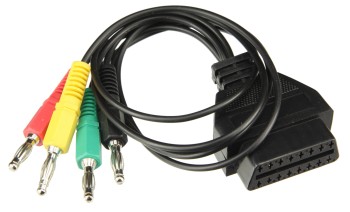
Now, I prefer using the LED method

Degrading wires (Mercedes and Porsche !)

Why I think claiming that the degrading wires were “intentionally installed for easier recycling” is a bullshit attempt to cover Mercedes benz’s unforgivable failure on those models

  • Having an arcing wire right next to the fuel pump is an even worse failure than the failing to predict that the wires will bio degrade
  • Giving a rust insurance of 30 years, and having the wires degrade after 10 ? doesn’t make any sense, You are implicitly telling the consumer you are expecting the car to live for 30 years, having its cables degrade starting after 10 years with the most dangerous ones, and eventually degrading to the extent that fixing it is not feasible contradicts the assumption of expected longevity !
  • Assuming the above is not correct in the sense that not all wires degrade, only those exposed to heat etc… defeats the purpose they claim the wires were scheduled to degrade for

To revisit

When your primary concern is getting it to run, you will come across stuff that needs attention after, here is a small list

  • The wires to the fuel pump need shrink wraps
  • Distilled water to be swapped with antifreeze

Shopping list

I don’t think this will be a long list, but I am mentioning what I needed here so that if you are in a similar situation, this might remind you of what you might need

  • Both kinds of polish compounds
  • Retouch paint, and application thingie
  • Thinner (To clean spray gun after)
  • Clear coat
  • Clean, lint free cotton
  • Masking paper
  • Electrician’s tape
  • Gasoline ! since it probably evaporated
  • A 12V tester (Usually in the form of a screw driver with a wire hanging out from the back to go to ground/Negative)
  • A 12V car battery (The one in the car is 100% toast)
  • Distilled water for the radiator (Add antifreeze later)

Head gasket and valve stem seals !

Surprise ! the head gasket is toast (happened while it was sitting) ! So I will probably need to start with this one

The head gasket i found on the market are Reinz (Victor Reinz now owned by DANA)… Part number 61-29105-10 – I am told that for that model year, the gasket was either Reinz, or Elring, Mercedes used both as OEM so I am hoping i should be good… the head gaskets for the M111 was a multi-layer steel (MLS), and is 91 mm diameter, 1.75 mm thickness, which is what the gasket i have is !

On ebay, it says this gasket fits the OEM numbers (111 016 05 20, 111 016 06 20, 111 016 11 20, 111 016 26 20, and 111 016 27 20)

For the Exhaust Manifold Gasket, I found the Victor Reinz Exhaust Manifold Gasket 71-29349-00, which seems to fit the bill (matches Mercedes-Benz OEM numbers 111 142 05 80 and 111 142 08 80)
Torque spec for the M111 exhaust manifold nuts is 25 Nm (Double check)

TTY head bolts: So, what is left is finding new TTY head bolts (torque-to-yield), this is usually where my problems begin, I am always forced to use the old bolts (Like everyone else) because finding those bolts is next to impossible in Jordan ! they tell me (We don’t cary them because no one orders them), this happened to me lately with my Toyota and almarkazeyah exclusive Toyota dealer !

Valve stem seals: Found the Corteco brand (PN: 19034069) ! this is not ideal as I prefer having OEM like Reinz or Elring, But I am being told Cortico is a brand of Freudenberg, the inventors of the seals you see on the crank of your car for example (Their brand of it was called Simmerring), So, with this old engine, I guess i will give them a go ! the box I have reads (made in Italy), Italy is the place where Chinese products go to get a European seal of origin (A loophole in the system, probably intentional) states that if anything is added to the product in italy, it can be branded as made in Italy !
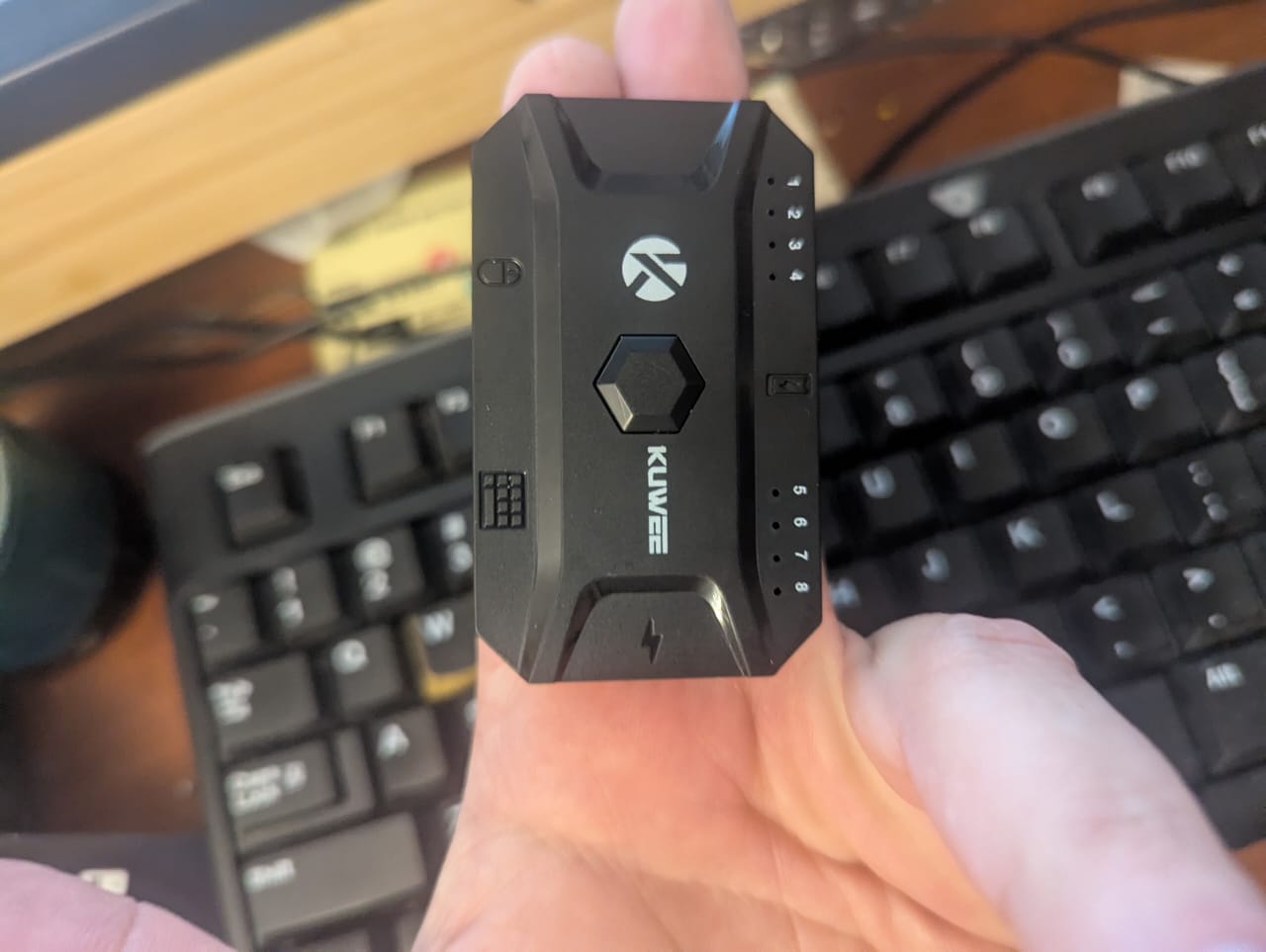
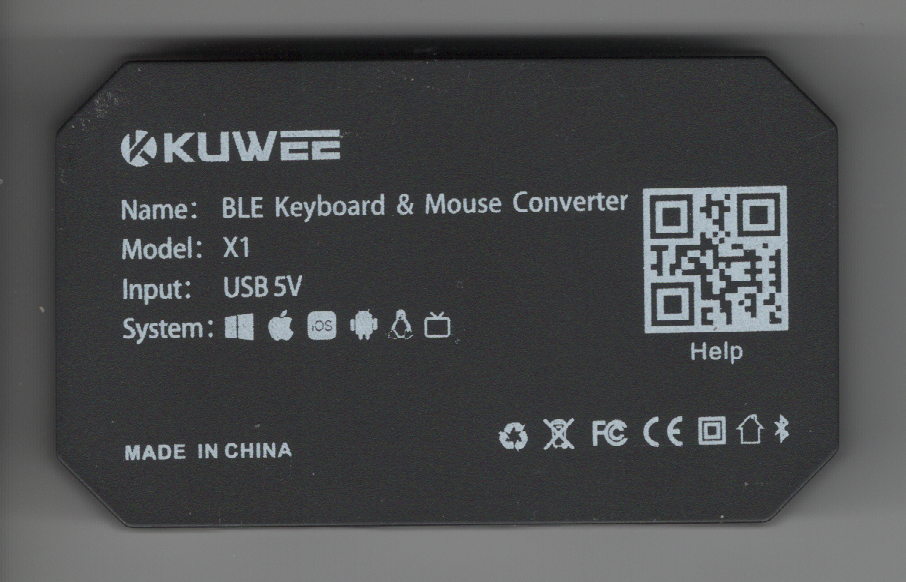
Keyboard and mouse Bluetooth wireless adapter

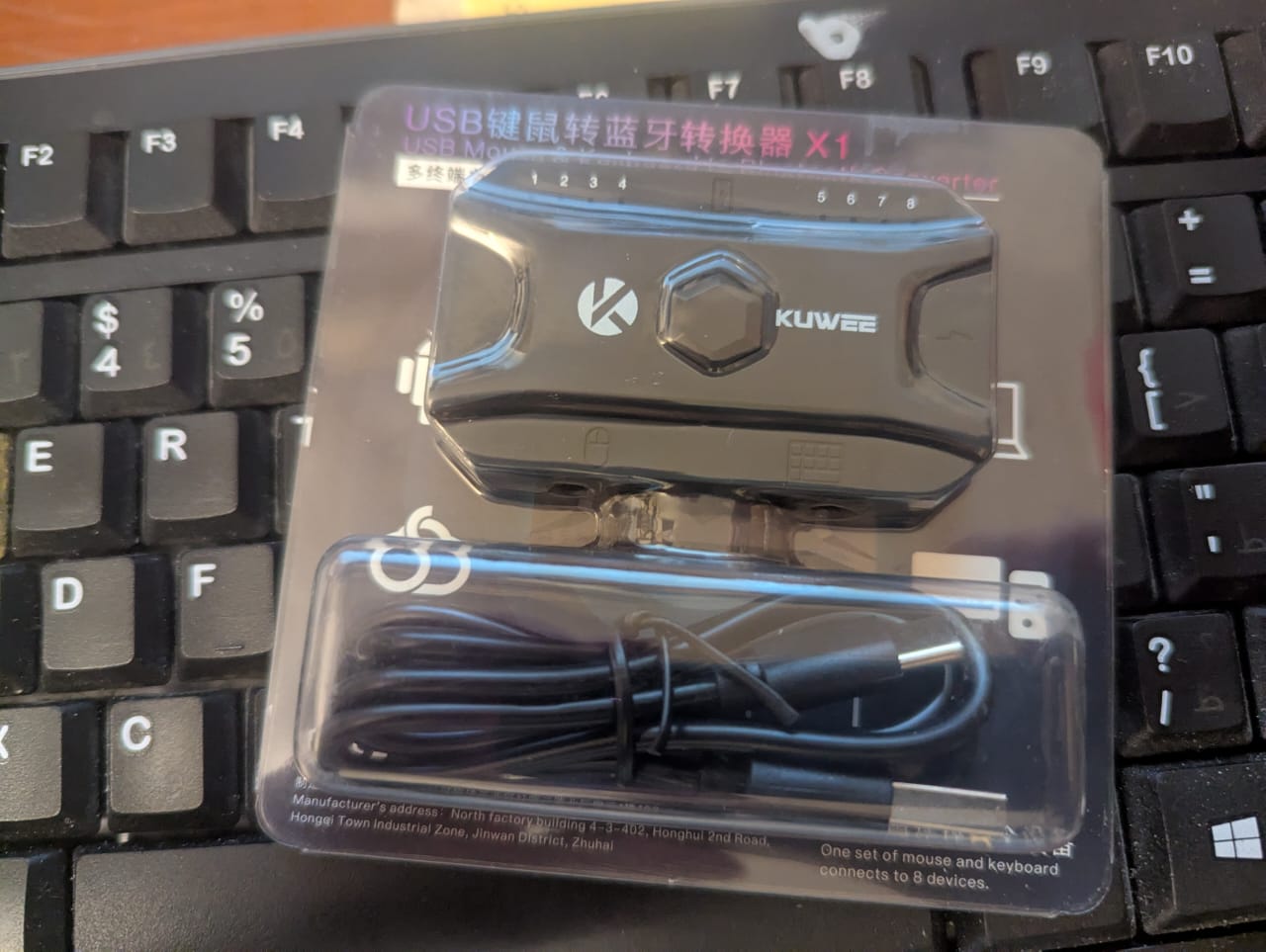
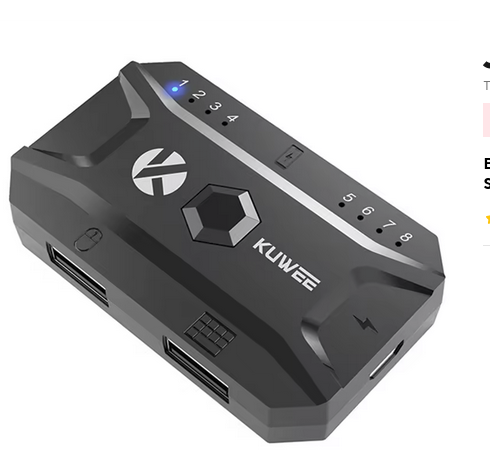
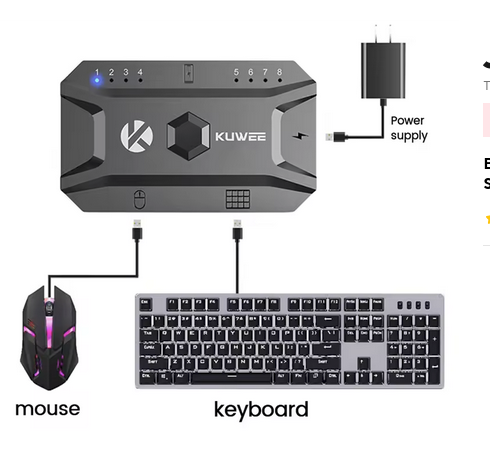
I found this adapter on Ali Express, the KUWEE Bluetooth 5 wired keyboard and mouse adapter, it should connect my beloved wired keyboard and mouse to my PC through Bluetooth 5, to any of 8 Bluetooth enabled devices

I got a few of them for a very nice project of mine, but more on that in another post !

According to the seller, here are the features of the device

  • Brand: BRDRC
  • Product size: 67x40x14MM
  • Interface type: USB
  • Effective distance:30M
  • Supported system: Windows, ios. Android, OS.linux. TVOS, etc color:Black
  • Material: plastic
  • Package Contents: 1 x Gaming Keyboard Mouse Converter.

I am still looking for all the specs, but i think I found what I was looking for and am here to share this

Note: The device works fine with my wireless keyboard and mouse in 1 dongle (I used the keyboard port for the dongle), I understand it defeats the purpose (2 wireless hops), but just in case you have a reason to want it to work with 1USB that carrys both keyboard and mouse, there you have it, IT WORKS

Pairing

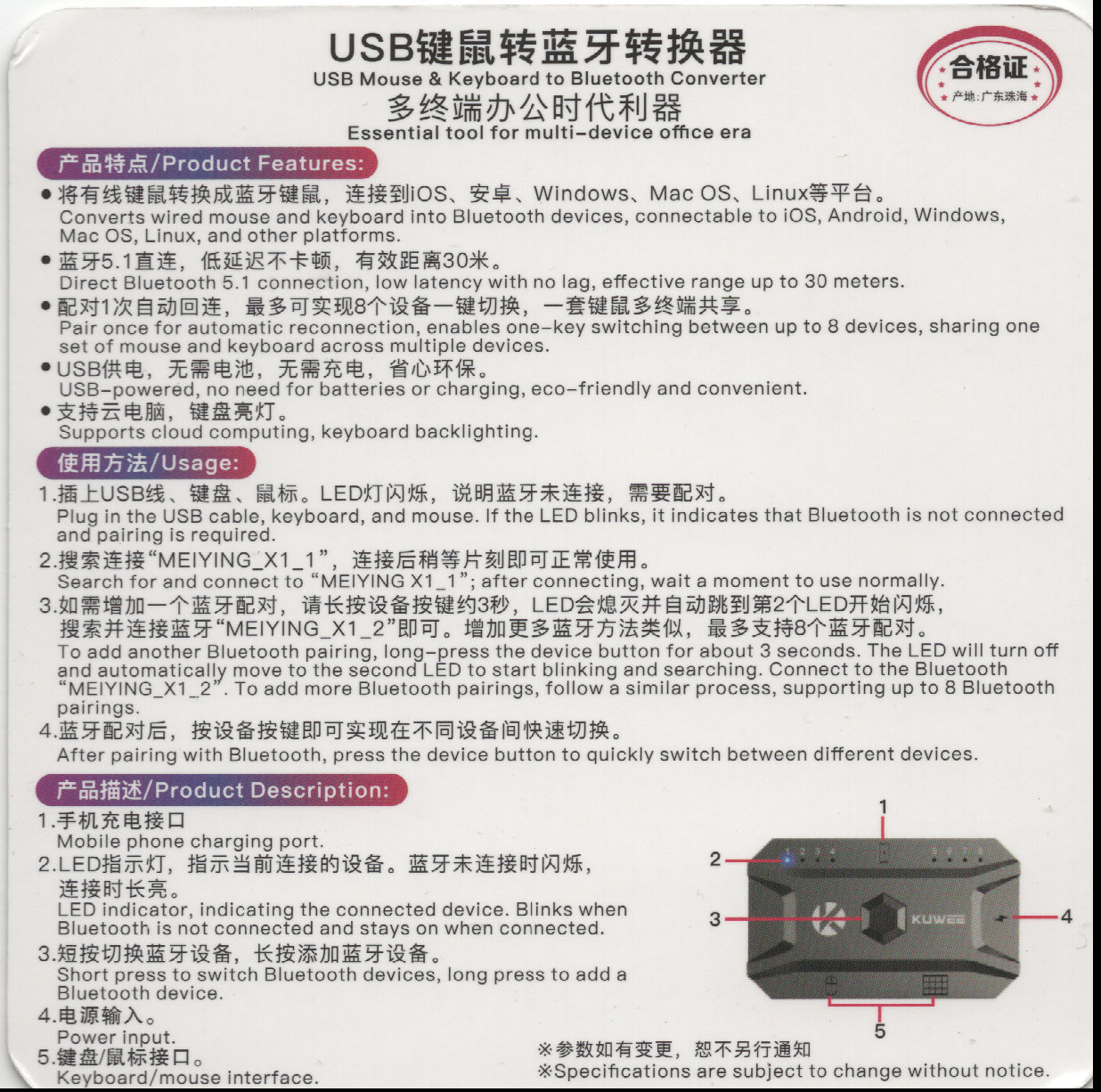
When you connect the device with a keyboard and mouse and power, you only need to hit the center button long enough for a new slot to start blinking, this means the device is ready to pair, look for the device with the name MEYING X1 3

1- Circulating through output: Switching output devices using the physical button on the device is inconvenient, you have to go through up to 7 clicks to get back to the one right before the one you are on (This is assuming all 8 slots are programmed, if you only programmed two devices, you only have to click twice to come back to the device you are on) !

So the answer is a shortcut, something a la KVM devices that intercept keyboard strokes as shortcuts, so the 8 inputs can be mapped directly to the 8 numbers on the keyboard with the following shortcut

Ctrl+Alt+Shift+1/8

2- Resetting the device: another shortcut that might come in handy is how to reset the device, here is the shortcut

device physical button + F1 on keyboard for 15 seconds

So, There you have it, the most useful two shortcuts that can mean the difference between convenient and inconvenient !

3- Multimedia buttons !

According to a random screenshot on my phone, the device adds multimedia buttons when you don’t have any physical ones !

  • Ctrl + Alt + Shift + Esc = Multimedia Keys on / off
  • Ctrl + Alt + Shift + F1 = iOS soft keyboard on / off
  • Ctrl + Alt + Shift + F2 = Volume Down
  • Ctrl + Alt + Shift + F3 = Volume Up
  • Ctrl + Alt + Shift + F4 = Mute
  • Ctrl + Alt + Shift + F5 = Previous
  • Ctrl + Alt + Shift + F6 = Next
  • Ctrl + Alt + Shift + F7 = Play / Pause

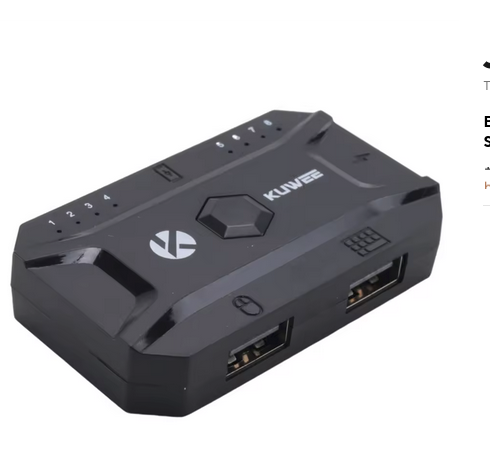
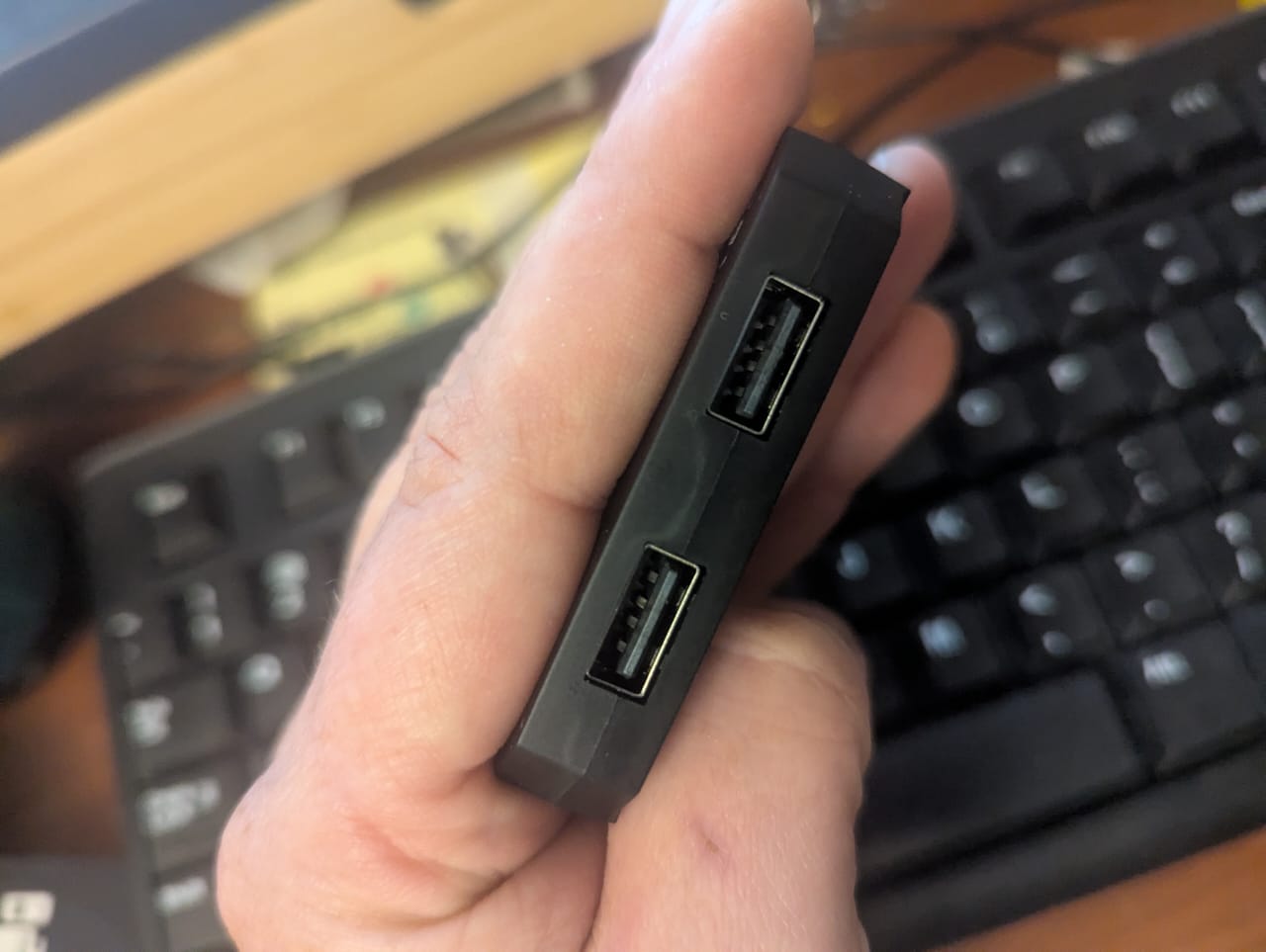
4- The USB output at the top: I don’t think it has any function other than sharing the power source to for example recharge a phone or something, not a very useful feature, but knowing what it is would at least answer your curiosities !

5- Size

For our American friends who would rather use any unit of measurement except for SI, the device itself is two fingers wide and less than one finger thick, and 3/4 index finger long, like in the photo below, as for everyone else, the dimensions of the device are 67x40x14MM

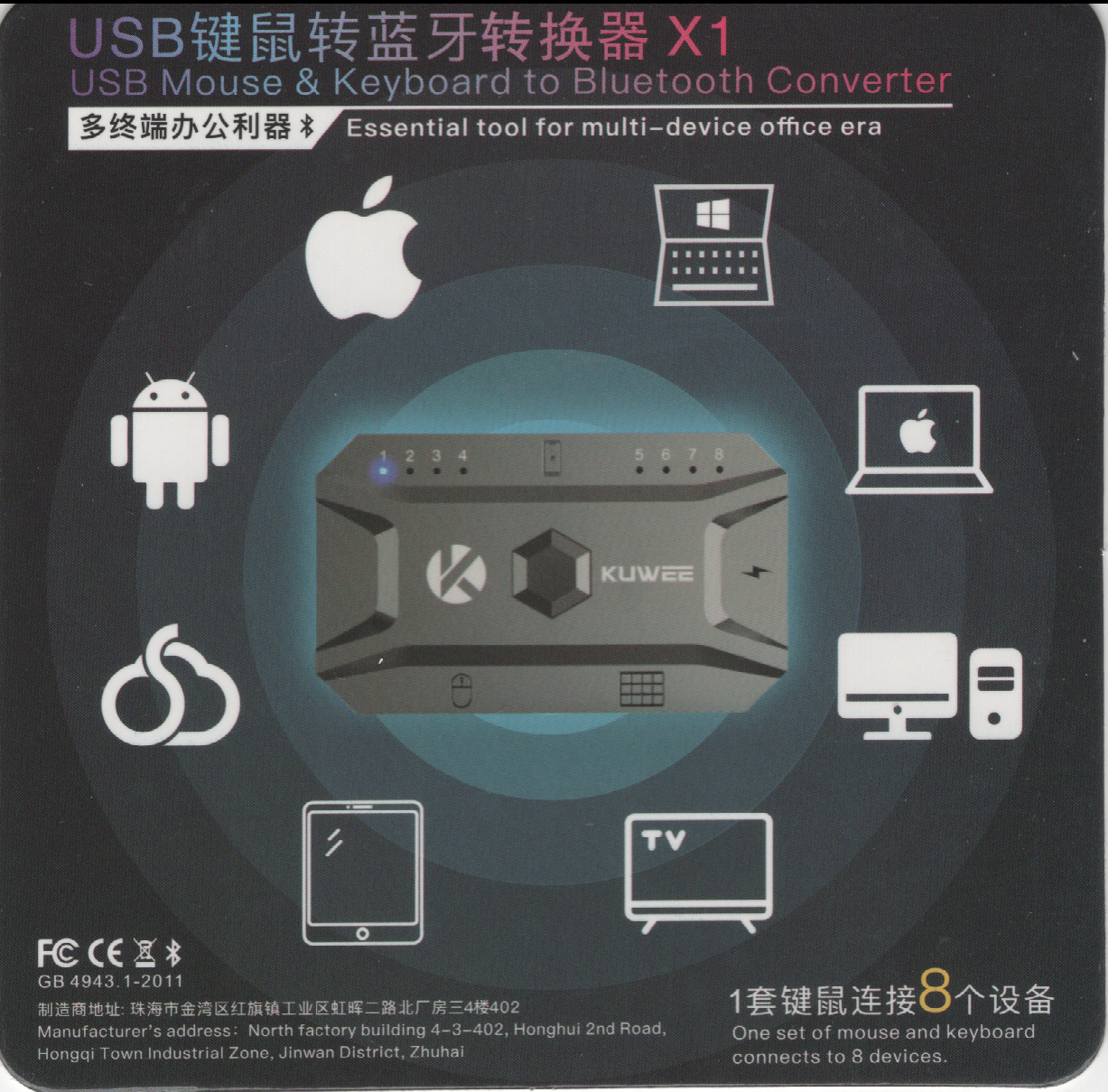
Here are some scans and photos i took for my future reference

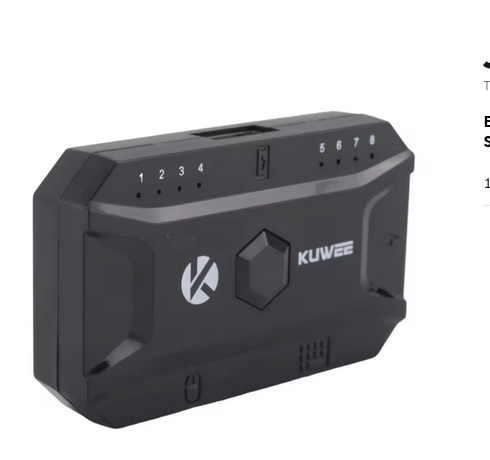
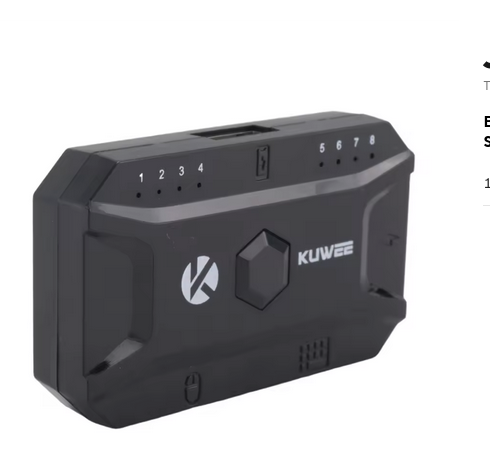
So, here are a few photos of the device from the website, here for my reference

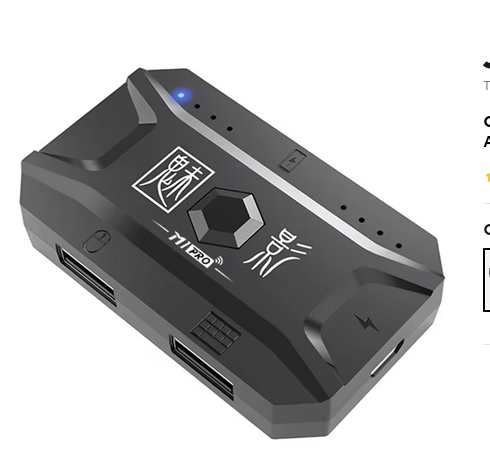
There is also another branding of the same external box at a much lower price (Photo below), sometimes less than half the price, but since i will have to wait a couple of weeks for it to arrive, I had to get the above because it has many more reviews, I would bet the other box is exactly like the one I got, but oh well, just a few dollars difference to spare me disappointment isn’t a big deal

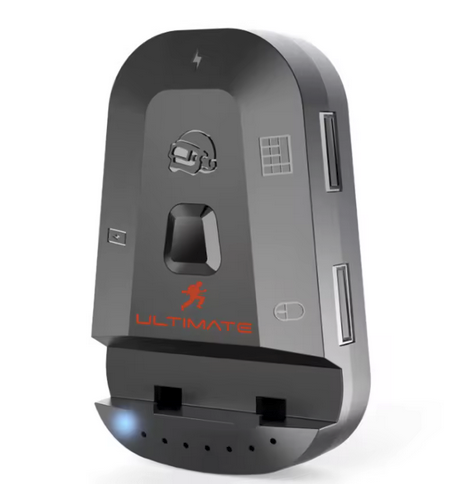
And there also seems to be another device that shares the same input and output and description and I would bet it is them same device in a different shell, it looks like the one below, and it is also available in the KUWEE brand…

Cloud AI with API

This page is a list of AI solutions that you can use via API for a fee (Or for free)

Vellum Leadboard: This website maintains a lead-board that compares prices !

  1. OpenAI (ChatGPT)
  2. Anthropic (Claude)
  3. Google / Gemeni
  4. DeepSeek
  5. Cohere / Command R
  6. Perplexity: (A search engine that can either use other models, or its own model)
  7. hunyuan : by tencent.. The T1 Turbo-s hybrid transformer MAMBA architecture (Super fast (2x)), 24K input tokens and 64K output tokens ($0.14, and $0.56 respectively)… HuggingFace demo
  8. Ernie 4.5 : From Baidu, china’s leading search engine (yiyan.baidu.com)
  9. grok.com (By XAI, under the same company that acquired twitter)

Anthropic / Claude

Anthropic’s claude is probably the main competing AI to OpenAI’s ChatGPT

Anthropic has an edge over OpenAI in many areas, I personally think it is better than OpenAI for Code generation

To simply chat with Claude, you can create an account at https://claude.ai/

To obtain API keys from anthropic and access the system programmatically, you will need to get the API keys from https://console.anthropic.com/

Your .env file

In the context of my AI notes, here is what you need to know about the .env file

Any file that starts with a . is a hidden file according to linux, windows is a bot funny about such files, it allows their existance, as long as you don’t try to use windows explorer to name or rename into them.

On linux, if you want the ls command to show such files, you would execute the command “ls -a

Now, with that out of the way, let me start with a few variables for various providers

# Open AI (ChatGPT)
OPENAI_API_KEY=sk-proj-xxxx
# Google AI (Gemeni)
GOOGLE_API_KEY=xxxx
# Anthropic (Claude)
ANTHROPIC_API_KEY=xxxx
# Huging face (HF_TOKEN is short for hugging face token)
HF_TOKEN=xxxx
# DeepSeek API
DEEPSEEK_API_KEY=sk-xxxx

OpenAI – ChatGPT

I am not sure this requires any introduction !

While the ChatGPT app can be accessed through, the API portal is at platform.openai.com, and even though the website provides a free tier, the API does not, you must have prepaid credits in order to use it, the minimum is $5, those $5 are pay as you go, you use them up by sending more API calls.

GPT 4o is rumored to be 10 Trillion parameters !! for comparison, deepseek, which is an amazing LLM that came out lately is 671 Billion parameters, meaning it is 7% of the size of ChatGPT !

Models and API pricing

Python virtual environment with pip

If you are familiar with python, you probably are also familiar with pip, and very likely familiar with venv (Virtual environments)

There is nothing special in particular about this for AI, it is exactly as you would for any other installation.

For AI, i would totally recommend anaconda, but if for some reason that is not an option, this option will do 100% of the time

So, you need to start by installing Python 3 !, On debian, I would just use the repository with apt, it may be true at the time of writing that in the repo it uses 3.11 rather than the latest 3.13, but that is absolutely fine

sudo apt update
// The following command should do
sudo apt install python3
//But i would much rather install everything python in one go
apt install build-essential wget git python3-pip python3-dev python3-venv \
python3-wheel libfreetype6-dev libxml2-dev libzip-dev libsasl2-dev \
python3-setuptools

Now, with that out of the way, navigate to the project’s folder (Assuming you have downloaded a project for example), and create a virtual environment

python3 -m venv venv

Now, you can activate that project with

source venv/bin/activate
//On windows, the above should look something like
venv\Scripts\activate

That is basically it, you will now need to, from within the command prompt of the venv, install dependencies either one by one using the pip command, or point it to a file containing the dependencies, for example

pip install -r requirements.txt

You should now be good to go !

Jupyter Notebooks

Launch

Within the context of our AI tutorial, start by activating your conda environment (Or venv)

Once active, run the following command to launch Jupyter

jupyter lab

Jupyter Notebook = The original three languages that were supported were Julia, Python and R. Sure there is a missing E in the words, but i guess the name is 90% cool. The logo pays homage to Galileo’s discovery of the moons of Jupiter, So I am not sure whether the name can be called a pun since the one of them is a shortening of three words and not a name, and a name with a misspelled letter.

Enough about the name and logo, let us get into what a Jupyter Notebook is

Technically, it is a JSON file with a ipynb extension, in reality, it is a way to create a web document “With live code”, equations, among other things

the types of cells in a notebook are

  • Code Cells: Execute code and display the output.
  • Markdown Cells: Write formatted text using Markdown.
  • Raw NBConvert Cells: Include content that is not evaluated by the notebook kernel

So, the markup inside that JSON file is not specific to AI per say, it is used in many science fields, but as you work your way through this blog, you will see how important it is for what we are trying to achieve ! important in the sense that it makes development simpler, it is not a thing you will use in your final product

In any case, to start Jupyter Notebook. activate your Conda environment, then run the following command from the terminal where the current directory is your project directory !

jupyter lab

Then, assuming you are working on a project that your downloaded from github for example, you can open the ipynb files found in there by clicking on them form the menu on the left !

Code cells get executed by a background python thread (Kernel) in the background, step by step when you go to that cell and click shift+enter